
IMPORTANT NOTE: Invoice AI does the heavy lifting, but a quick review ensures everything looks right before you finalize.
DO
- Upload ONE invoice per file.
- Group all pages of the same invoice together in a single file.
- Submit standard Food & Beverage vendor invoices whenever possible.
- Keep original printed text visible under handwritten edits/cross-outs when you can.
- Use the purple wand to correct invoice lines (this helps improve future processing).
- If something looks off, check the AI Issues area (Invoices section) before starting over.
- If you forgot a page, upload the missing page while the invoice is still in the mapping phase. In the upload window, the option to Automatically trigger re-processing of complete invoice is unchecked by default. Check that box and click Upload Image, and it will trigger a re-processing of all images of the invoice. This will overwrite any existing edits to the invoice, so make sure you are aware of that before checking this box.
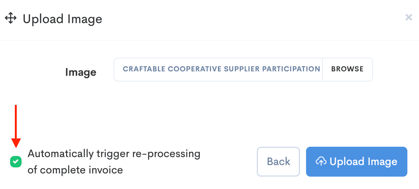
Note - If the invoice is already past the mapping phase you can manually add lines, or delete and resubmit all images together.
DO NOT
- Do not upload multiple invoices (or multiple vendors) in the same PDF or file.
- Do not delete an AI-processed invoice and recreate it manually if your goal is to improve AI accuracy (those changes won’t feed back into the model).
- Do not submit non-Food & Beverage documents (e.g., very large phone bills/utility statements). Note, that AI will still try to process these documents, if it can, but it is prone to making more errors than with standard Food & Beverage invoices.
- Do not send oversized email attachments or bulk uploads that exceed system limits.
- Do not expect highly non-standard invoice formats to process perfectly without review—fix with the wand and/or manually upload
- Do not assume smaller/regional vendors will map perfectly on day one—early corrections help the system learn.
If It Doesn’t Work Like You Expect
- Confirm all pages were submitted (especially for multi-page invoices).
- If you’re missing a page, upload it—Invoice AI can often auto-match it during mapping.
- If a page is ungrouped, review it in AI Issues and assign it to the correct invoice.
- Use the purple wand to correct lines (preferred).